
Drop in a photograph and get the subject back on transparency, at the size you uploaded it. Most free background removers hand you a preview and charge for the real file: remove.bg caps a free download at about 0.25 megapixels, roughly 625 by 400 pixels. This one returns the cut-out at the pixel size you uploaded, with no account and no watermark. The cut-out runs on a graphics card in our own office and takes a few seconds.
A worked example: a product shot on transparency
The picture we used is a 3D render, not a photograph: a phone stand with the 4B logo and the word Hello engraved on its deck, standing on a desk, with a pencil and a second stand out of focus behind it. It is 2,304 × 4,096 pixels, saved as a 299 KB JPEG. The task is the usual one for a listing or a poster: keep the stand, lose everything else, and keep every pixel. The screenshots were taken on the live tool on 10 October 2026, and the numbered marks are ours.
1. Drop in the image
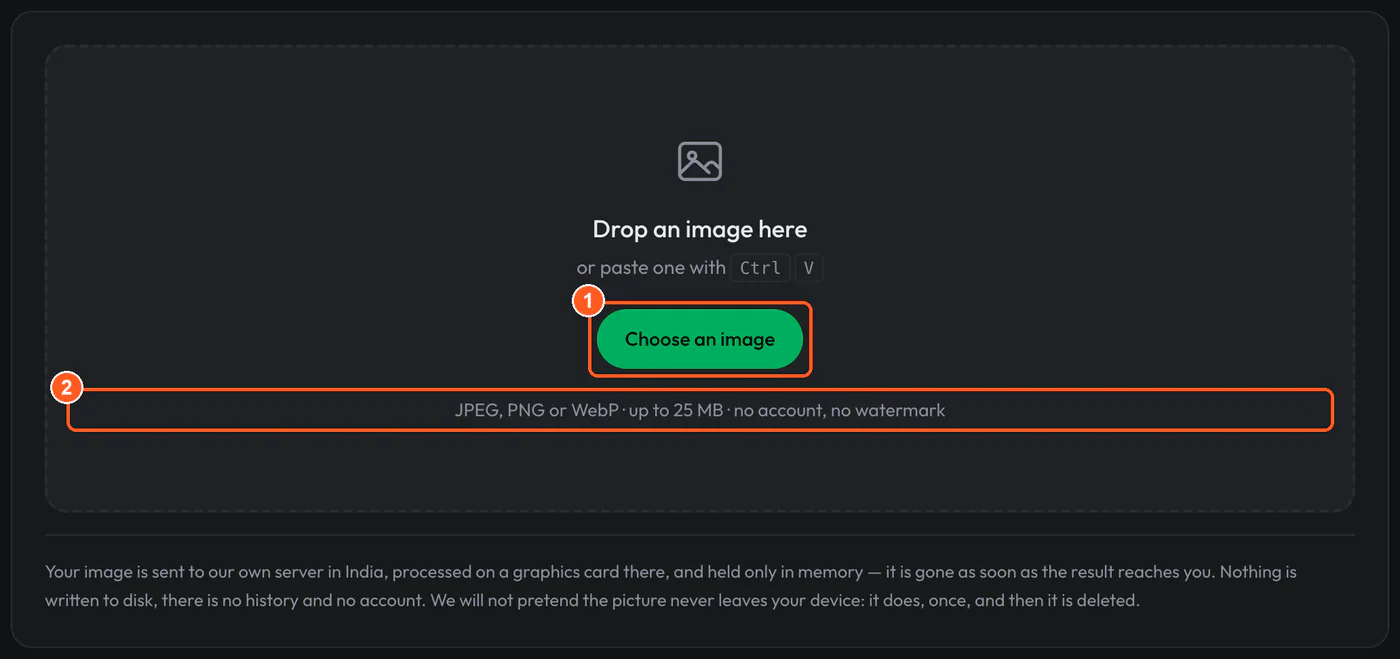
- Mark 1: Choose a file, drag one onto the box, or paste an image from the clipboard.
- Mark 2: The accepted formats and the size limit the tool states. On 10 October 2026 uploads over about 1 MB were refused; see the limits below.
2. Wait a few seconds
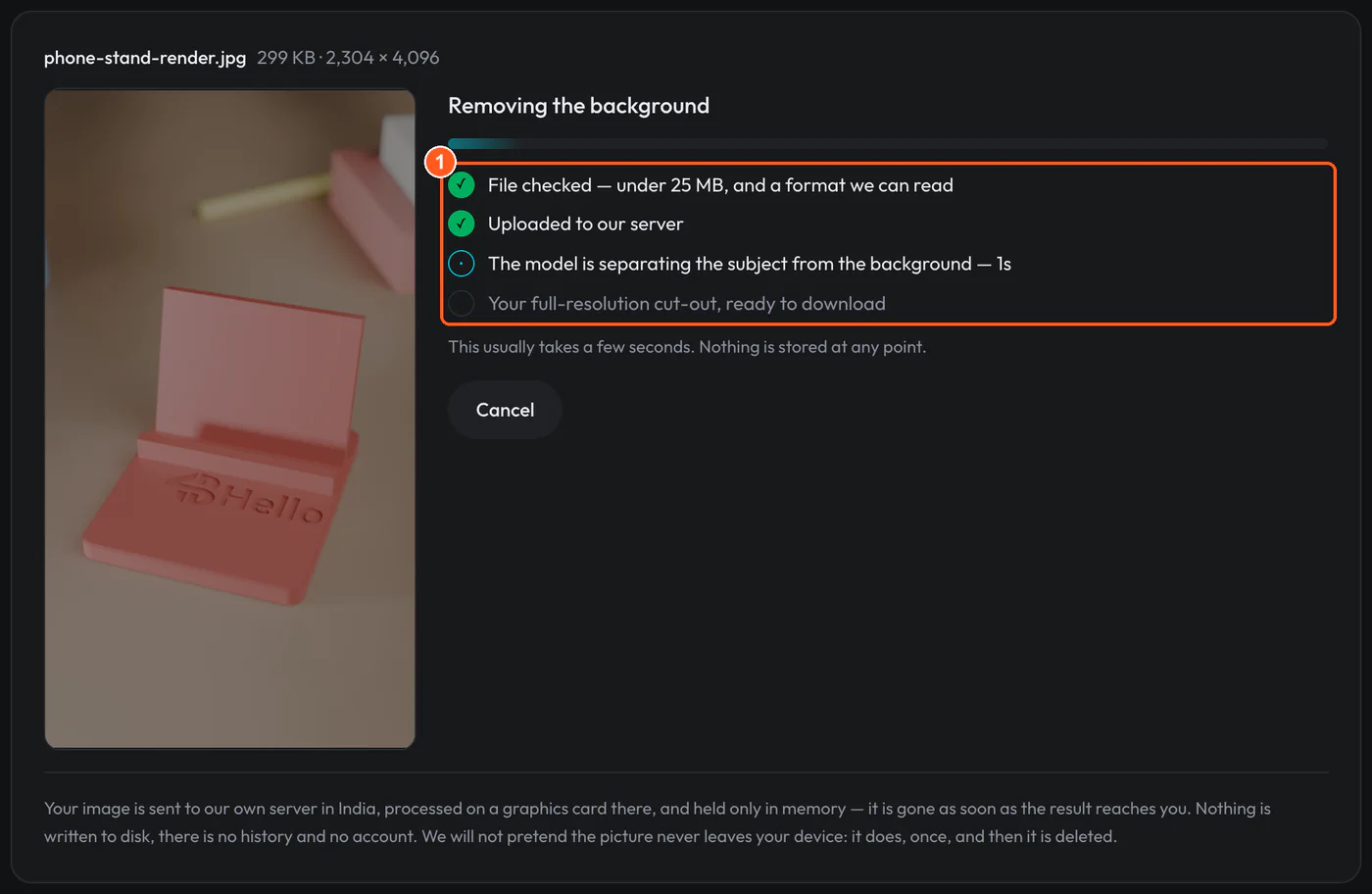
- Mark 1: Each stage is listed as it happens: the file check in your browser, the upload, then the model running on our graphics card.
From choosing the file to the finished cut-out took about 7.5 seconds, most of it the model’s work. The image goes to our own server in India, is processed there in memory and is not written to disk.
3. Check the cut-out, pick a background, download
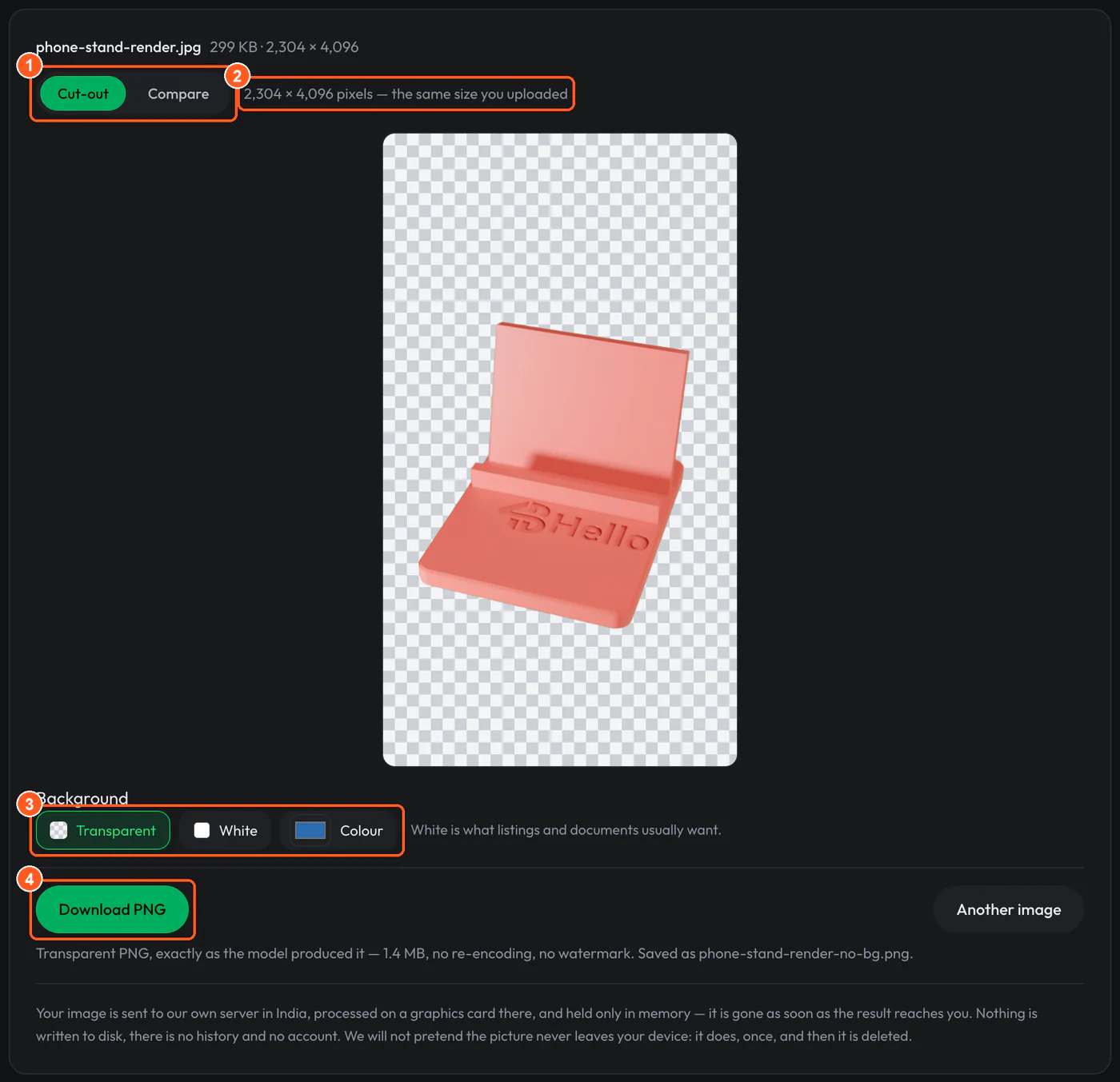
- Mark 1: Cut-out shows the result alone. Compare shows the original and the cut-out in one frame, split by a slider you drag.
- Mark 2: The tool states the output size: here 2,304 × 4,096, the same as the upload.
- Mark 3: Transparent, white or any colour. With white or a colour, a JPEG download appears next to the PNG.
- Mark 4: The transparent PNG is handed over exactly as the model produced it: 1.4 MB, no watermark.
Before and after
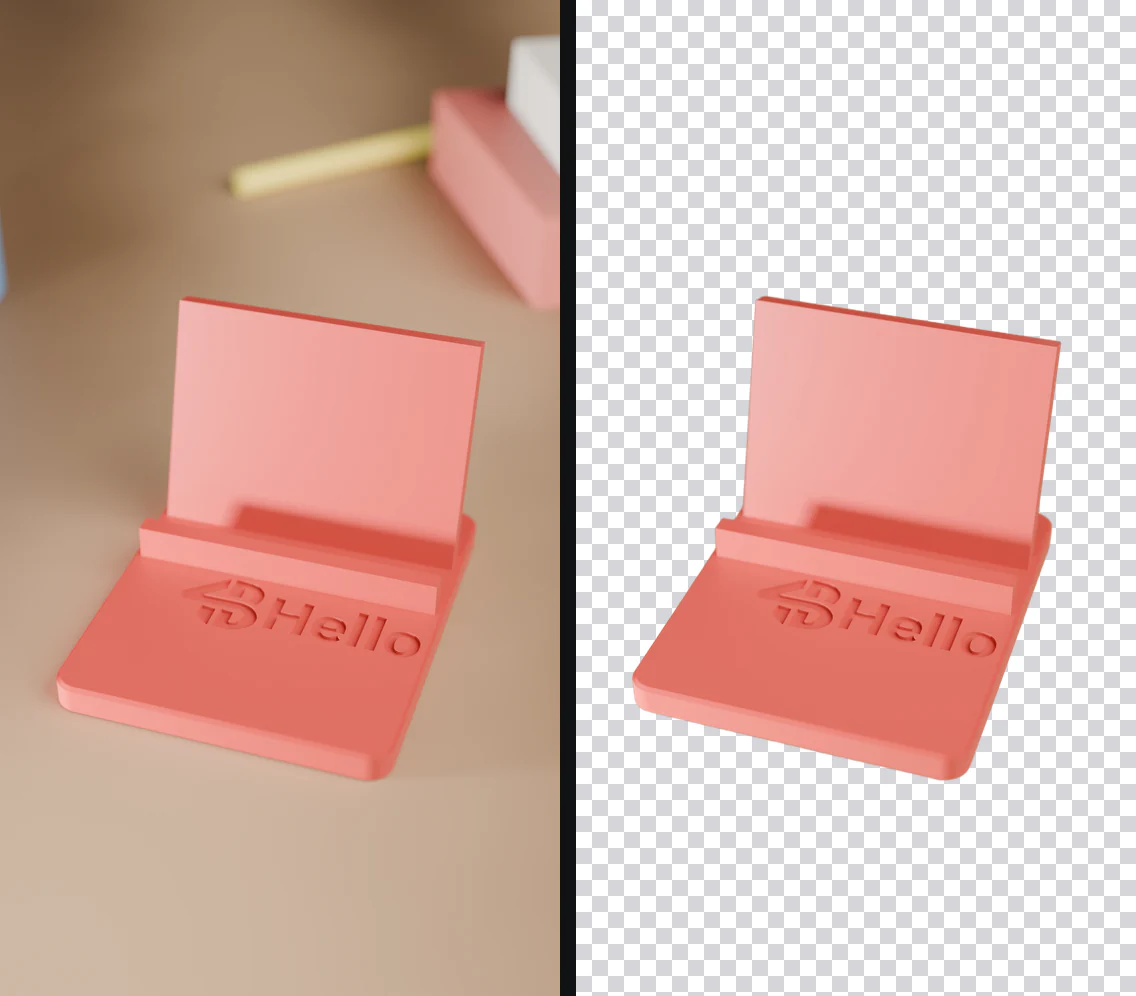
Three things to check in a result like this:
- Only the subject stays. The second stand at the top right is the same colour as the first, but it is out of focus and behind the subject, and the model removed it with the rest of the background.
- The shadow goes too. The soft shadow under the stand belonged to the background, so on a white page the stand will look as if it floats. Add a shadow in your layout program if the picture needs one.
- The edge is soft, not cut with scissors. In the downloaded file about 75,000 pixels along the outline are partly transparent. That is what lets the stand sit cleanly on a new background instead of showing a jagged rim.
Limits and file formats
- Input: JPEG, PNG or WebP. The tool states a limit of 25 MB per file. iPhone HEIC photos cannot be read by browsers; the tool explains how to switch the camera to JPEG (Settings, Camera, Formats, Most Compatible).
- File size today: on 10 October 2026 the server in front of the tool refused any upload over about 1 MB. A 780 KB JPEG of 4,000 × 3,000 pixels went through and came back at 4,000 × 3,000; a 5.2 MB JPEG of the same picture was refused with the message “That image is larger than the 25 MB limit.” A full-size JPEG from a phone camera is usually over 1 MB. Until this is fixed, make a smaller copy first, by lowering its JPEG quality or its pixel size; the cut-out comes back at the size of that copy.
- Output: a transparent PNG at the size you uploaded, or the cut-out placed on white or a colour of your choice as a PNG or JPEG, also at full size. On a phone, a very large photo can be too big for the browser to place on a colour; the tool then says so, and the transparent PNG still works.
- Resolution: every pixel of the subject is your own, at your own size. The model looks at the picture at 1,024 × 1,024 and its mask is scaled back up, so on a very large image the outline is smooth rather than exact to the pixel.
- Hard cases: fine hair and fur, glass and anything see-through, thin wires and plant stems, and subjects close in colour to their background. Background Remover’s own page has a section on each of these and on what makes a good input photo. Our guide Product photos on white measures two of them against the exact outline of a test render, and takes a cut-out all the way to a square listing image.
- One image at a time, up to 10 a minute and 100 an hour from one visitor, so the shared graphics card stays available to everyone.
- Privacy: no account and no history. The image is held in memory on our server for the few seconds the work takes, then discarded.